
MATLAB#
There are multiple ways to use MATLAB with Tufts HPC Cluster resources. In this guide, we cover two supported approaches:
OnDemand Matlab Server, which runs entirely in your browser
Matlab Batch Jobs via Command Line, which runs on cluster in the background
OnDemand Matlab Server#
Log in to Tufts HPC Open OnDemand:
https://ondemand-prod.pax.tufts.edu/Select Matlab Server from the
Interactive Appsmenu.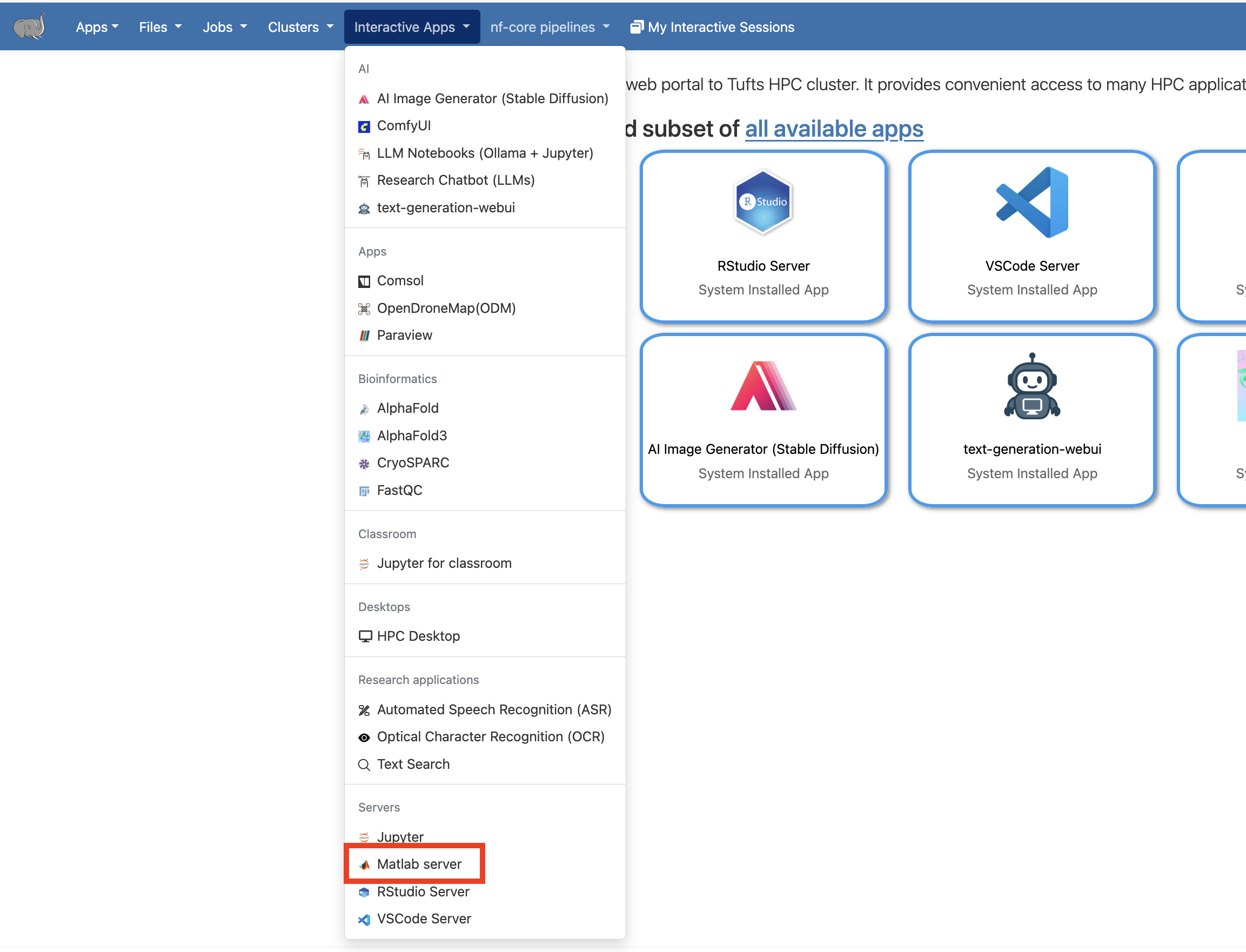
Fill out the form and click Launch.
The Matlab Server session will run on a compute node using the resources you requested.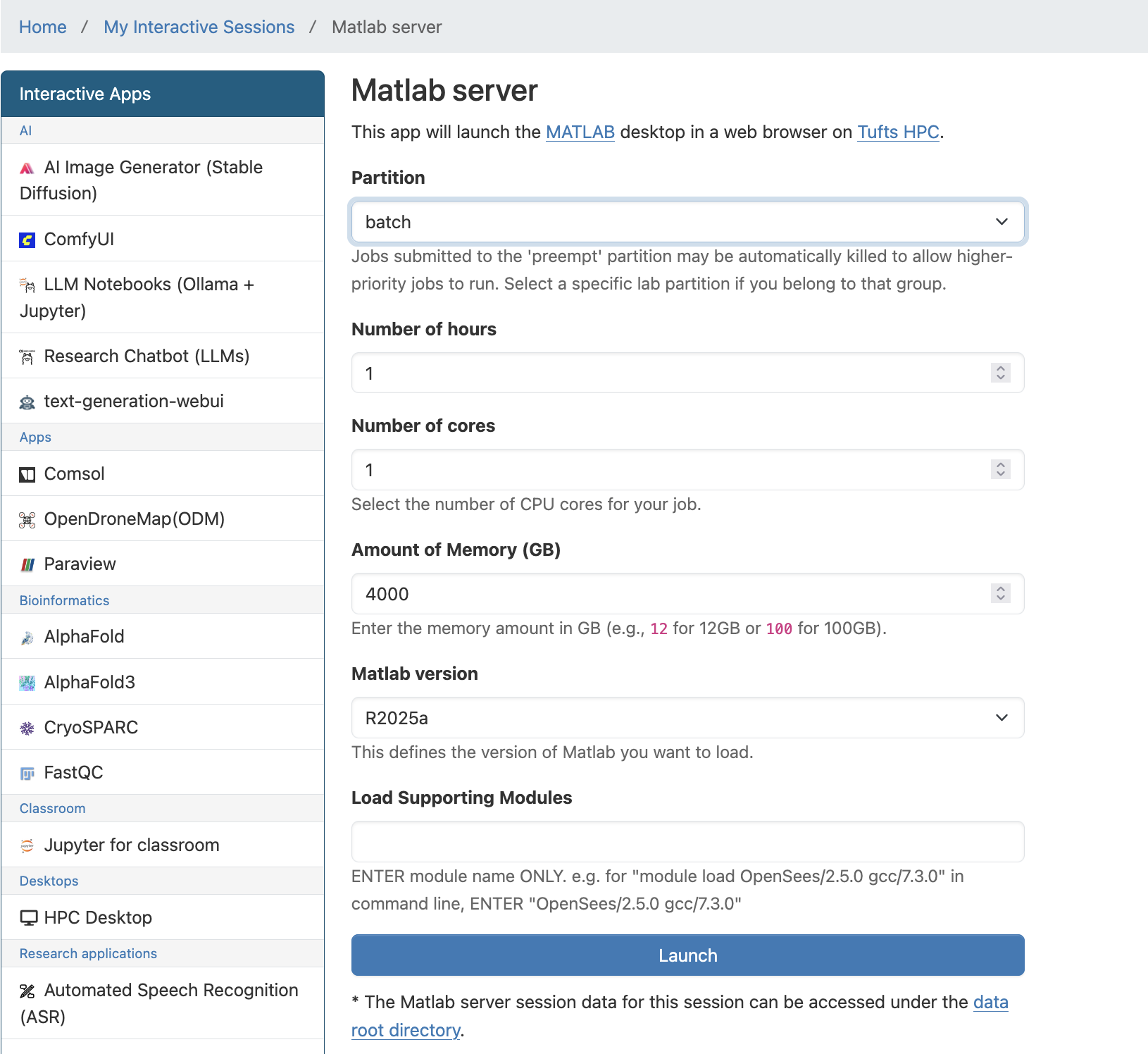
Click Connect to Matlab Server.
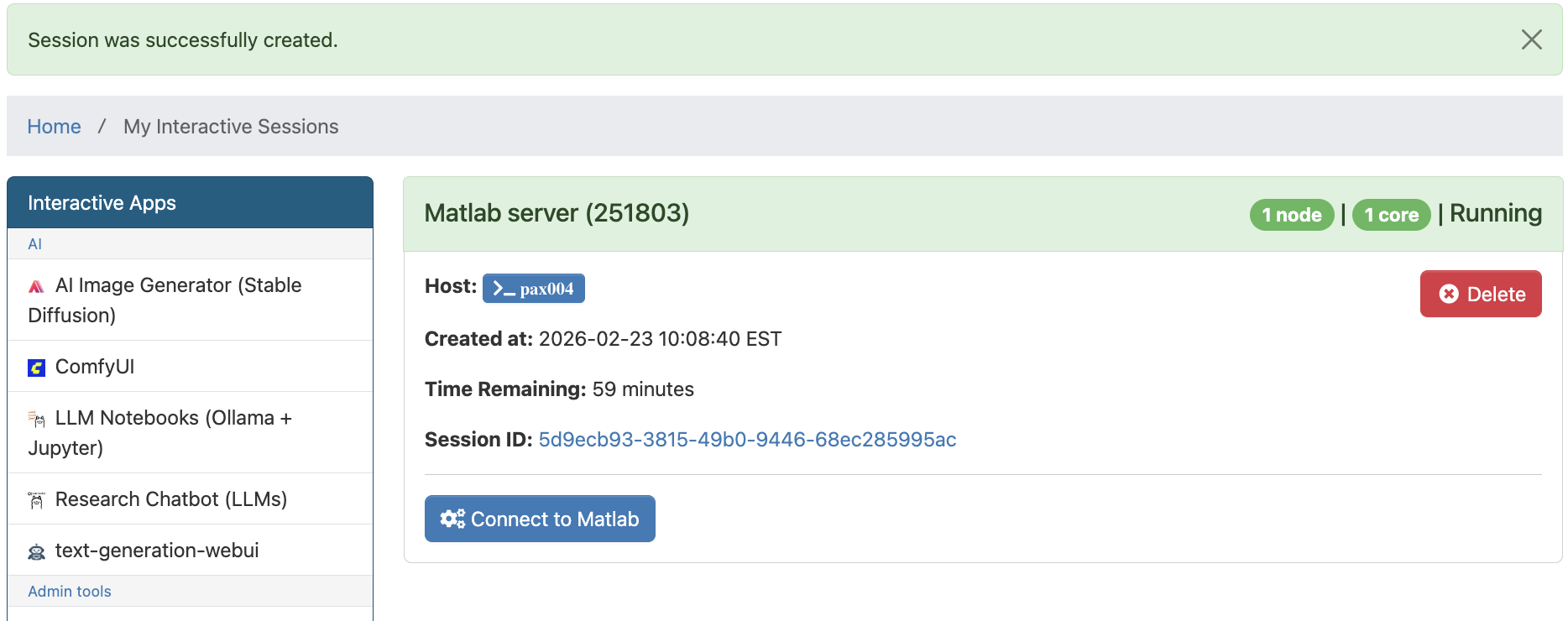
When finished, delete the Matlab Server session in Open OnDemand to free resources for other users.
MATLAB Batch Jobs on HPC Cluster via Command Line#
Matlab batch job refers to running Matlab scripts or Matlab commands in a batch mode, where the job is submitted to the computing cluster’s scheduler to be executed asynchronously. Batch jobs are typically used for computationally intensive tasks or tasks that require significant processing time, as they allow users to submit jobs and continue working without having to wait for the job to complete. This approach is useful for running Matlab scripts that involve large datasets, complex calculations, or simulations that may take a long time to finish.
Steps:
Login to the HPC cluster
Upload your Matlab script or create your own on HPC cluster
Go to the directory/folder which contains your Matlab script, e.g.:
$ cd /cluster/tufts/xxxlab/username/myfolder
Open your favorite text editor and write a slurm submission script similar to the following one
batchjob.sh(name your own)#!/bin/bash #SBATCH -J my_matlab_job #job name #SBATCH --time=00-00:20:00 #requested time #SBATCH -p batch #running on "batch" partition/queue #SBATCH -n 1 #1 CPU core total #SBATCH --mem=2g #requesting 2GB of RAM total #SBATCH --output=myjob.%j.out #saving standard output to file #SBATCH --error=myjob.%j.err #saving standard error to file #SBATCH --mail-type=ALL #email optitions #SBATCH --mail-user=Your_Tufts_Email@tufts.edu #Below this point, are the commands executed on the computing resource allocated module purge module load matlab/R2025a #run matlab script matlab -nodisplay -nojvm -nodesktop -nosplash < test.m
Submit it with
$ sbatch batchjob.sh
NOTE: If you are submitting multiple batch jobs to run the same Matlab script on different datasets, please make sure the results are saved to unique files inside of your Matlab script.
Learn more about slurm batch job