
File Transfers#
Important
Globus is highly recommended for File Transfers on Tufts HPC Cluster.
Important
VPN - Off-campus access from non-Tufts Network please connect to Tufts VPN.
Prerequisites#
Active Cluster Account
VPN
2FA
There are several methods available to copy your data to and from the HPC cluster. These include SCP/SFTP, OnDemand and Globus.
Important
File Transfer hosts (xfer) are being retired in favor of using the login nodes directly for SCP/SFTP or rsync.
File Transfer Protocol
SCP(Secure Copy Protocol)
SFTP(SSH File Transfer Protocol)
rsync over SSH
Recommended software
Cross-Platform: SecureCRT
Windows Only: WinSCP
Cross-Platform: FileZilla
Cross-Platform: Cyberduck
Native: Windows 11, Mac and Linux all include a command line SSH clients in the OS. This
scpcommand can be used for quick connections without installing additional software.Web Interface:OnDemand (Only for transferring files size less than 976MB per file.)
OnDemand#
Go to OnDemand:
Home DirectoryUnderFiles, using theUploadorDownloadbuttons to transfer. Make sure you navigate to the destination/source directory on cluster using theChange directorybutton before transferring files.
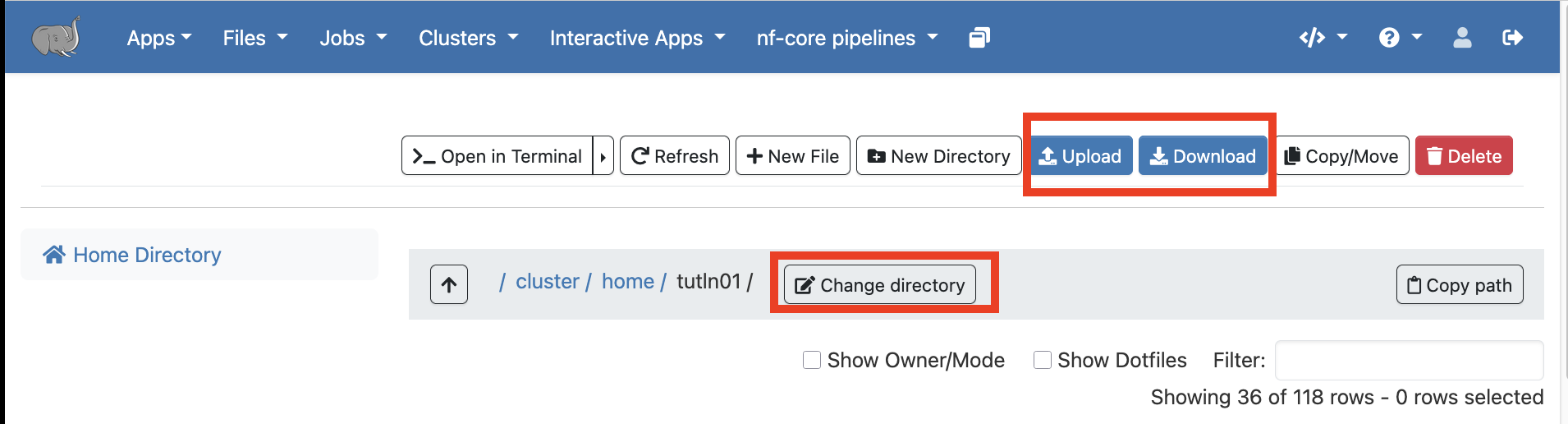
You may not see your lab folder listed under /cluster/tufts, DO use Change directory button and TYPE out the FULL path.
Command Line - scp & rsync#
Hostname for file transfer: login-prod.pax.tufts.edu
NOTE:
Local_Path : Path to your files or directory on your local computer
Cluster_Path :Path to your files or directory on the cluster
Home Directory: /cluster/home/your_utln/your_folder
Research Project Storage Space Directory: /cluster/tufts/your_lab_name/your_utln/your_folder
The following commands are execute from your local machine terminal.
General Format:
$ scp From_Path To_Path
$ rsync From_Path To_Pat
NOTE: If you are transferring very large files that could take hours to finish, we would suggest using rsync as it has ability to restart from where it left if interrupted.
Example:
File Transfer with scpor rsync:
Download from cluster
$ scp your_utln@login-prod.pax.tufts.edu:Cluster_Path Local_Path
$ rsync your_utln@login-prod.pax.tufts.edu:Cluster_Path Local_Path
Upload to cluster
$ scp Local_Path your_utln@login-prod.pax.tufts.edu:Cluster_Path
$ rsync Local_Path your_utln@login-prod.pax.tufts.edu:Cluster_Path
Directory Transfer with scp or rsync:
Download from cluster
$ scp -r your_utln@login-prod.pax.tufts.edu:Cluster_Path Local_Path
$ rsync -azP your_utln@login-prod.pax.tufts.edu:Cluster_Path Local_Path
Upload to cluster
$ scp -r Local_Path your_utln@login-prod.pax.tufts.edu:Cluster_Path
$ rsync -azP Local_Path your_utln@login-prod.pax.tufts.edu:Cluster_Path