
Using Automated Speech Recognition on the Cluster#
By Peter Nadel, Digital Humanities Natural Language Processing Specialist
In this document, we introduce and explain the use of the Automated Speech Recognition (ASR) application on the Tufts High Performance Compute (HPC) Cluster. This document does not give an in-depth description of all of the intricacies of this application.
We also encourage you to explore the HPC Cluster documentation.
What is ASR?#
The ASR application is designed to take audio files and return a transcription of its contents and do so in a safe and secure fashion.
Who is this for?#
This application is best suited for individuals who require audio transcriptions for their research. This is especially useful for qualitative researchers who conduct regular interviews. This application is not connected to third-party software and as a result is suitable for sensitive or private information.
ASR details#
This application expects a folder of audio files uploaded to the Cluster. So long as you have that you are able to use this application. If you only have one file, simply uploaded it in a folder by itself. The application requires .wav files, but all other audio formats will be automatically converted.
Getting started#
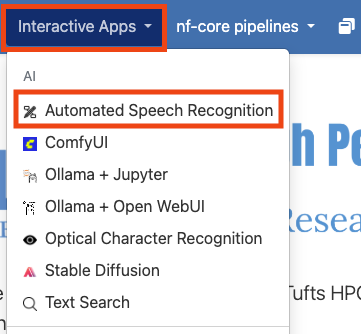
ASR is an Open OnDemand application on the Cluster, meaning that it can be access from the Interactive Apps drop down in the Open OnDemand website. To get started, visit and log into the Open OnDemand website for the Tufts Cluster. Once there, select the “Interactive Apps” drop down and click on “Automated Speech Recognition”.
Configuring you session#
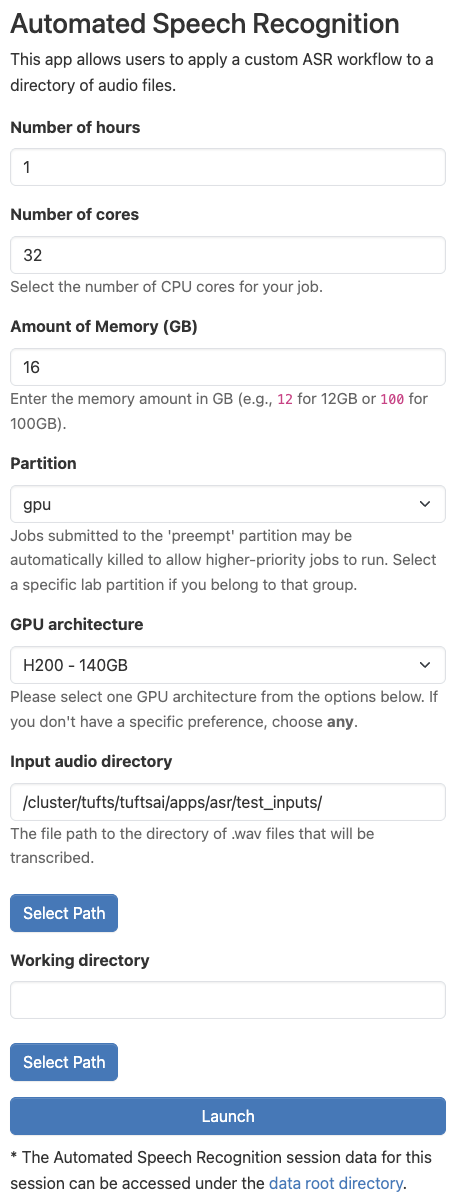
Once you’ve clicked on “Automated Speech Recognition”, you will be able to configure the setting for using the application. Some of these options can be confusing, so we have left an example configuration below. If you are unsure, feel free to use this one. Otherwise, we explore what these parameters mean here:
Number of hours: This parameter controls how long your session will run for. At the conclusion of this time, your session will end. Be sure to choose a time that matches how you expect to need in hours. You can always budget more time than you may need and they end the session early if you need.
Number of cores: This field controls how many CPU cores are allocated for your session. It is important to pick a value proportional to the size of the LLM you’d like to run. If you are having trouble choosing, you can use the value shown below.
Amount of Memory (GB): This setting controls how many gigabytes of RAM are allocated to your session. This value can also be difficult to choose, so I like to use double the amount of CPU cores that I have selected.
Partition: You should choose the “gpu” option. Generally, we require hardware acceleration to run ASR models. You can run some models, however, with just CPUs, especially if you adjust the number of cores and amount of memory to be quite high, in which case, you could select “batch” for this option.
GPU architecture: This parameter controls the type of GPU that is allocated for your session. For the most part, it may not matter, however, if you pick a GPU type that is high demand, it may take longer for your session to get allocated. For more information on how to check demand for GPUs, use the
hpctoolsCLI. Learn more here.Input audio directory: This parameter should be the file path to the folder with the audio files you’d like to transcribe. To upload files use the file explorer as explained here
The rest of the the fields should remain in their default configuration. When you are ready, click “Launch”.
Getting your results#
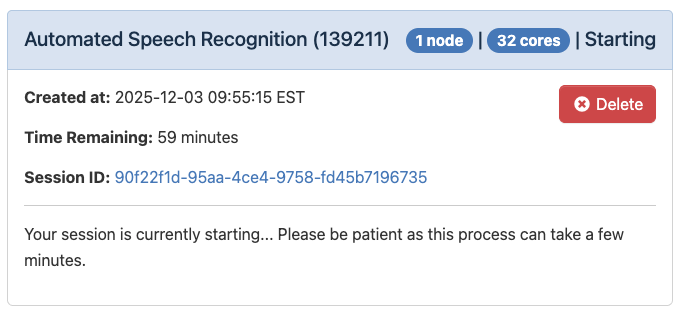
Once you’ve launched your session, you will see the loading message below. It is very normal to see this for a couple minutes.
When the application starts running, you’ll see the message below:
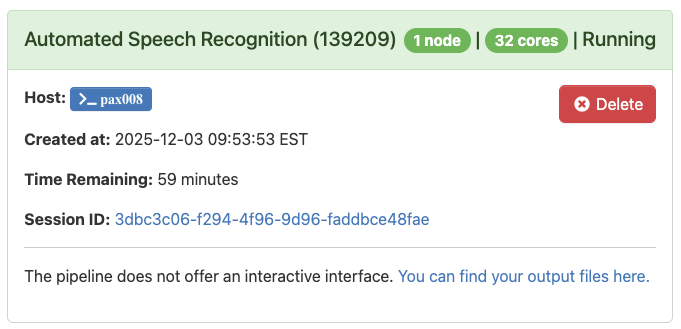
When the application is complete and the text has been searched, you will see the message below:
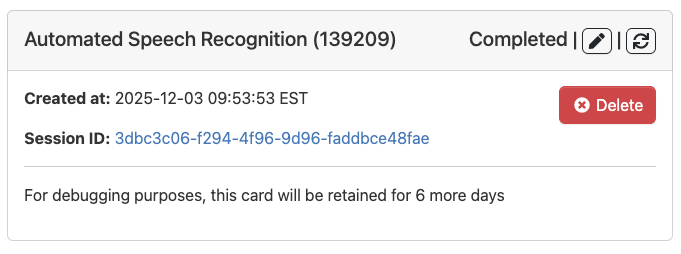
You can new visit the directory with your source files and the results will be in a new subfolder called “asr_output”.
For any questions, please reach out to Research Technology at: tts-research@tufts.edu.