
Using Text Search on the Cluster#
By Peter Nadel, Digital Humanities Natural Language Processing Specialist
In this document, we introduce and explain the use of the Text Search application on the Tufts High Performance Compute (HPC) Cluster. This document does not give an in-depth description of all of the intricacies of this application.
We also encourage you to explore the HPC Cluster documentation.
What is Text Search?#
The Text Search application is designed to facilitate finding and assigning importance values to given search queries.
As an input, we expect you to have a folder full of the documents you would like search through and a set of a queries that you would like to search in the documents.
As an output, you will receive a spreadsheet file (either .CSV or .XLSX) where each row represents a document. This row will contain information about the prevalence of each search query in that document. There are two ways that the importance of a search term is measured: TF-IDF and Semantic Search. They are explained in more detail below and can be toggled on or off in the application.
Who is this for?#
This application is best suited for individuals who have a large set of documents and would like to determine the prevalence and importance of certain terms in that set of documents. Often the first step before manual review, this initial filtering can help users weed out documents that are obviously not of interest or relevancy. This is particularly useful for sensitive materials, a case where manual review of documents should be as limited as possible. In the case that you have sensitive data, please visit the Data Storage Finder to learn more about what data can and cannot be held on the Cluster.
Getting started#
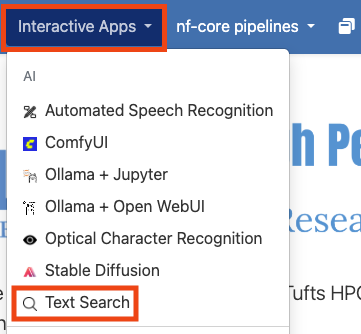
Text Search is an Open OnDemand application on the Cluster, meaning that it can be access from the Interactive Apps drop down in the Open OnDemand website. To get started, visit and log into the Open OnDemand website for the Tufts Cluster. Once there, select the “Interactive Apps” drop down and click on “Text Search”.
Configuring your session#
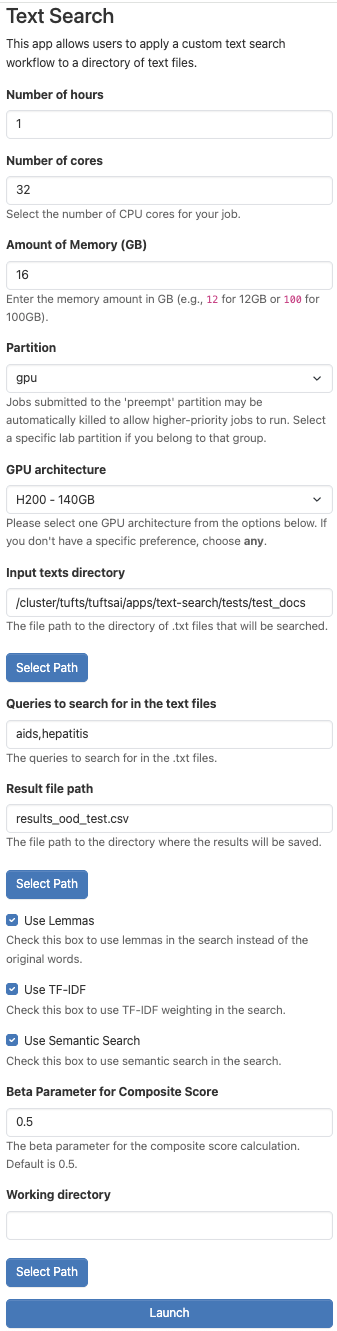
Once you’ve clicked on “Text Search”, you will be able to configure the setting for using the application. Some of these options can be confusing, so we have left an example configuration below. If you are unsure, feel free to use this one. Otherwise, we explore what these parameters mean here:
Number of hours: This parameter controls how long your session will run for. At the conclusion of this time, your session will end. Be sure to choose a time that matches how you expect to need in hours. You can always budget more time than you may need and they end the session early if you need.
Number of cores: This field controls how many CPU cores are allocated for your session. It is important to pick a value proportional to the size of the LLM you’d like to run. If you are having trouble choosing, you can use the value shown below.
Amount of Memory (GB): This setting controls how many gigabytes of RAM are allocated to your session. This value can also be difficult to choose, so I like to use double the amount of CPU cores that I have selected.
Partition: You should choose the “gpu” option if you plan to use Semantic Search. Generally, we require hardware acceleration to run these kinds of models. You can run just TF_IDF, however, with just CPUs, especially if you adjust the number of cores and amount of memory to be quite high, in which case, you could select “batch” for this option.
GPU architecture: This parameter controls the type of GPU that is allocated for your session. For the most part, it may not matter, however, if you pick a GPU type that is high demand, it may take longer for your session to get allocated. For more information on how to check demand for GPUs, use the
hpctoolsCLI. Learn more here.Input texts directory: This parameter should be the file path to the folder with the documents you’d like to search through. If you are having trouble remembering the file path, you can use the “Select Path” button to navigate your file system and select a path that way.
Queries to search for in the text files: These are the querues that you want to search in your documents. Ensure that individual queries are separated with a comma.
Result file path: This is the file name for the result spreadsheet. You can find this file in the same directory as your source documents.
Use Lemmas: This parameter will convert the text into its lemmas, the base form of the word. For example, the words “ran” and “runs” would be changed to “run”. This allows for certain text-based searching to be more robust to natural language. It is recommended to keep this checked on.
Use TF-IDF: This parameter tells the application to use TF-IDF to conduct its searching. See below for more details.
Use Semantic Search: The parameter tells the application to Semantic Search to conduct its searching. See below for more details.
Beta parameter for Composite Score: This parameter is used to weigh the TF-IDF and Semantic scores. See below for more details.
The rest of the the fields should remain in their default configuration. When you are ready, click “Launch”.
Getting your results#
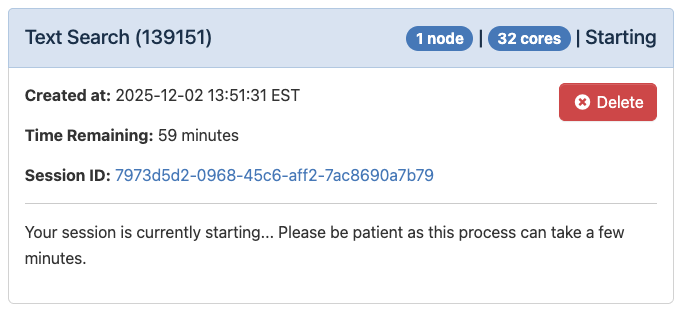
Once you’ve launched your session, you will see the loading message below. It is very normal to see this for a couple minutes.
When the application starts running, you’ll see the message below:
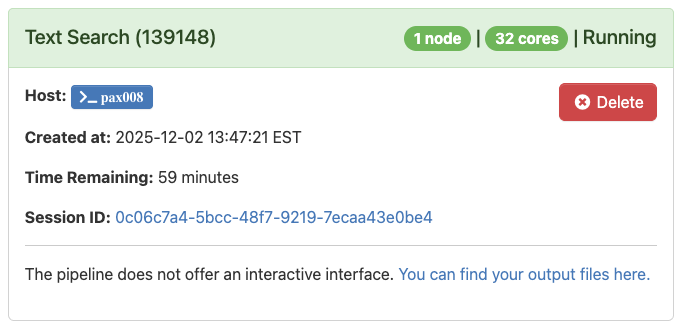
When the application is complete and the text has been searched, you will see the message below:
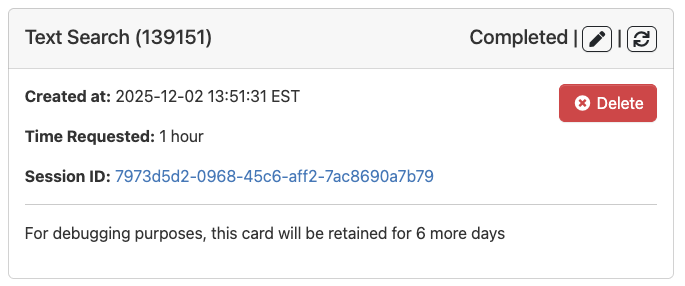
You can new visit the directory with your source documents and the results will be in a new subfolder called “text-search-output”.
Search details#
As mentioned above, the Text Search application takes advantage of two search methods: TF-IDF and Semantic Search.
TF-IDF (an abbreviation for term frequency-inverse document frequency) is traditional text search. The application searches through each document and determines if a given search query exists verbatim in that document. The importance of that document is then weighed by how many times that term occurs in it. It is very fast and we recommend it for all searches.
Semantic Search, on the other hand, leverages modern AI and machine learning to evaluate how similar a search term is to each document. This means that even though a document may not contain an exact search term in it, if it includes synonyms or similar terminology, that document may still receive a high importance score. This can be quite valuable for finding relevant documents, but it can add more processing time, depending on how many documents you have.
Last, if you choose to use both search methods, the application also provides a composite score, which takes a weighted average between the two scores. The weight is represented by a parameter called “Beta” and can be changed in the application. A Beta over 0.5 means that you weigh Semantic Search to be more important than TF-IDF, while one lower than 0.5 means that opposite. It is set at 0.5 as a default, which weighs each evenly.
For any questions, please reach out to Research Technology at: tts-research@tufts.edu.