
RStudio via OnDemand#
Launch RStudio#
Go to OnDemand Login with Tufts SSO.
RStudio Serverapp is available inInteractive Apps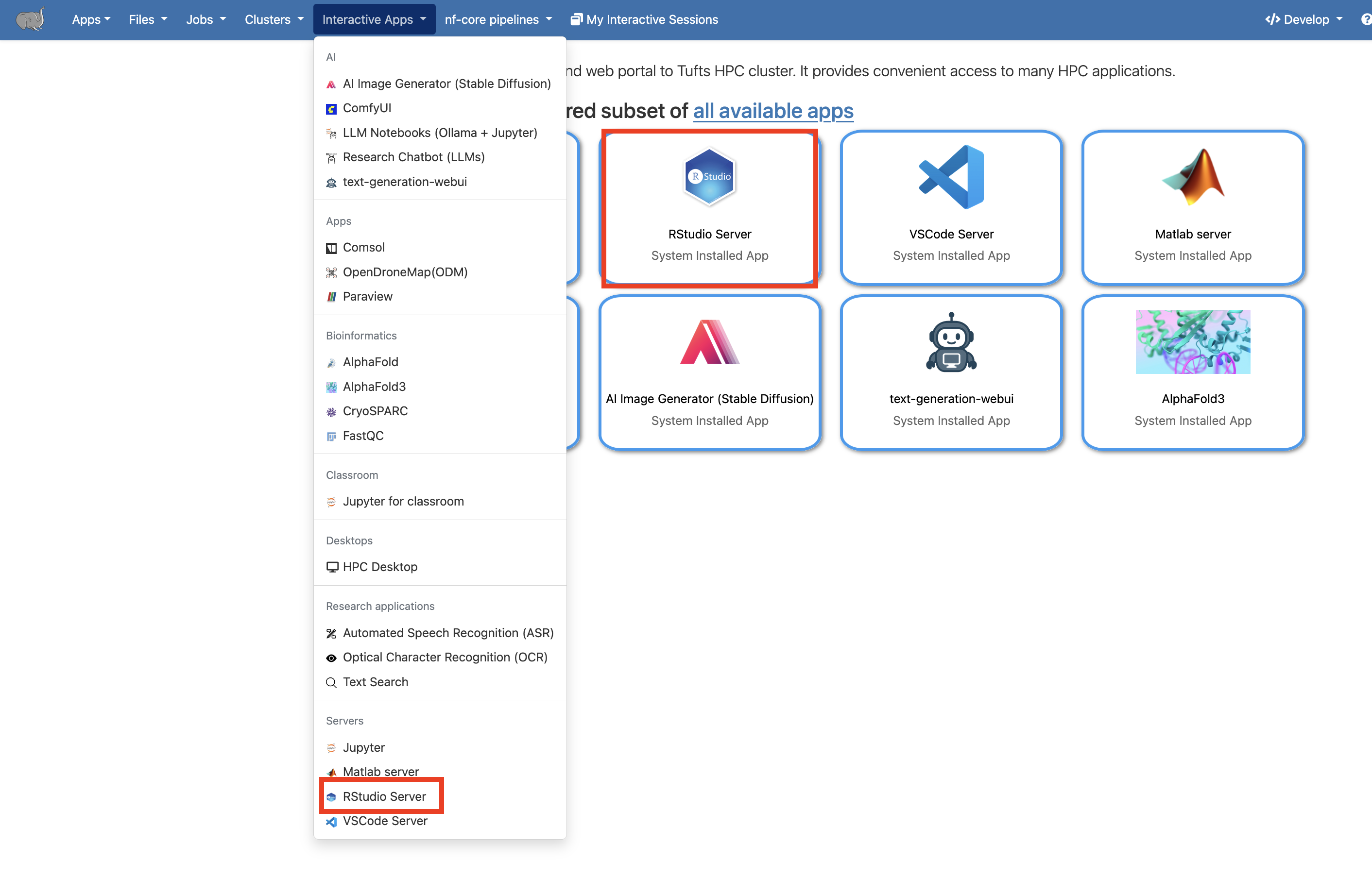
Fill the request form with the appropriate amount of resources needed for your work and the version of R needed. Click
Launchto launch the session.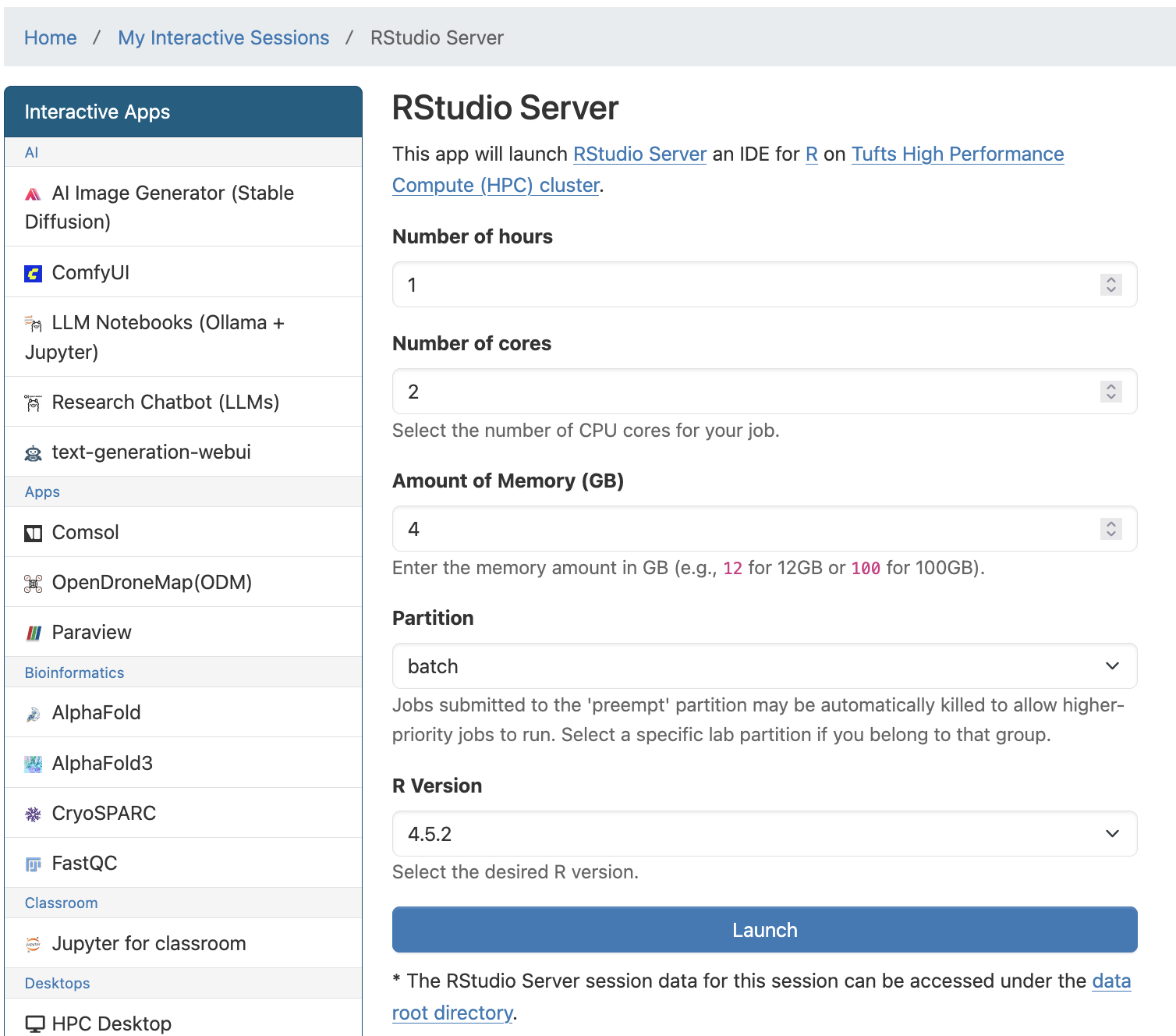
Once the resource for your session is allocated, click
Connect to RStudio Serverto start.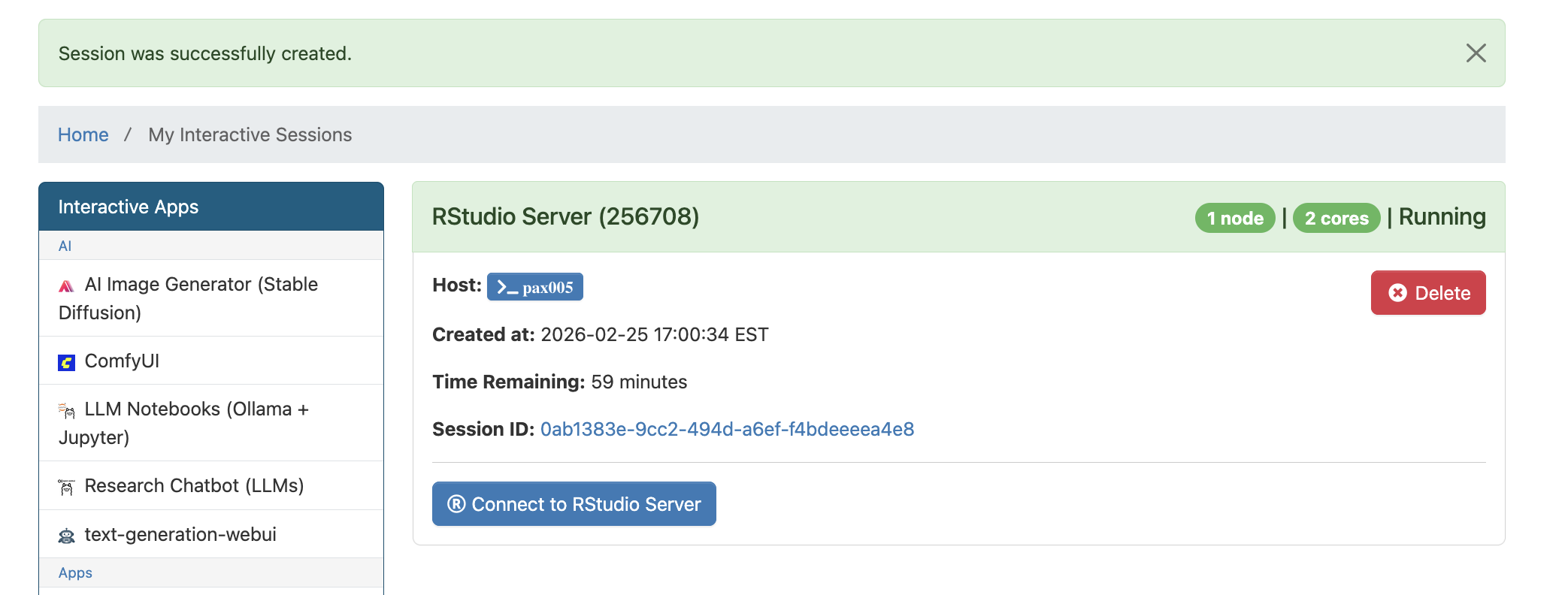
When you finished, exit RStudio properly
q(), then close the RStudio tab, and go back to theMy Interactive Sessionspage clickDeleteto end the session and free up resources for other users.
Debug OnDemand RStudio Pax#
Logs from RStudio could be corrupted sometimes which will cause RStudio not launching from OnDemand. Here are a few things you can try. Make sure all RStudio sessions are deleted before this.
Rename the file
~/.local/share/rstudio
$ mv ~/.local/share/rstudio ~/.local/share/rstudio_bkp
Rename the
/cluster/home/$USER/.RData
$ mv ~/.RData ~/.RData_bkp
Now you can try relaunch RStudio. If it’s working properly for you, test out your workflow.
If you get all you need without issues, you can go ahead and delete ~/.local/share/rstudio_bkp and ~/.RData_bkp.
If you have any questions or need additional assistance, feel free to reach out to us at tts-research@tufts.edu.